




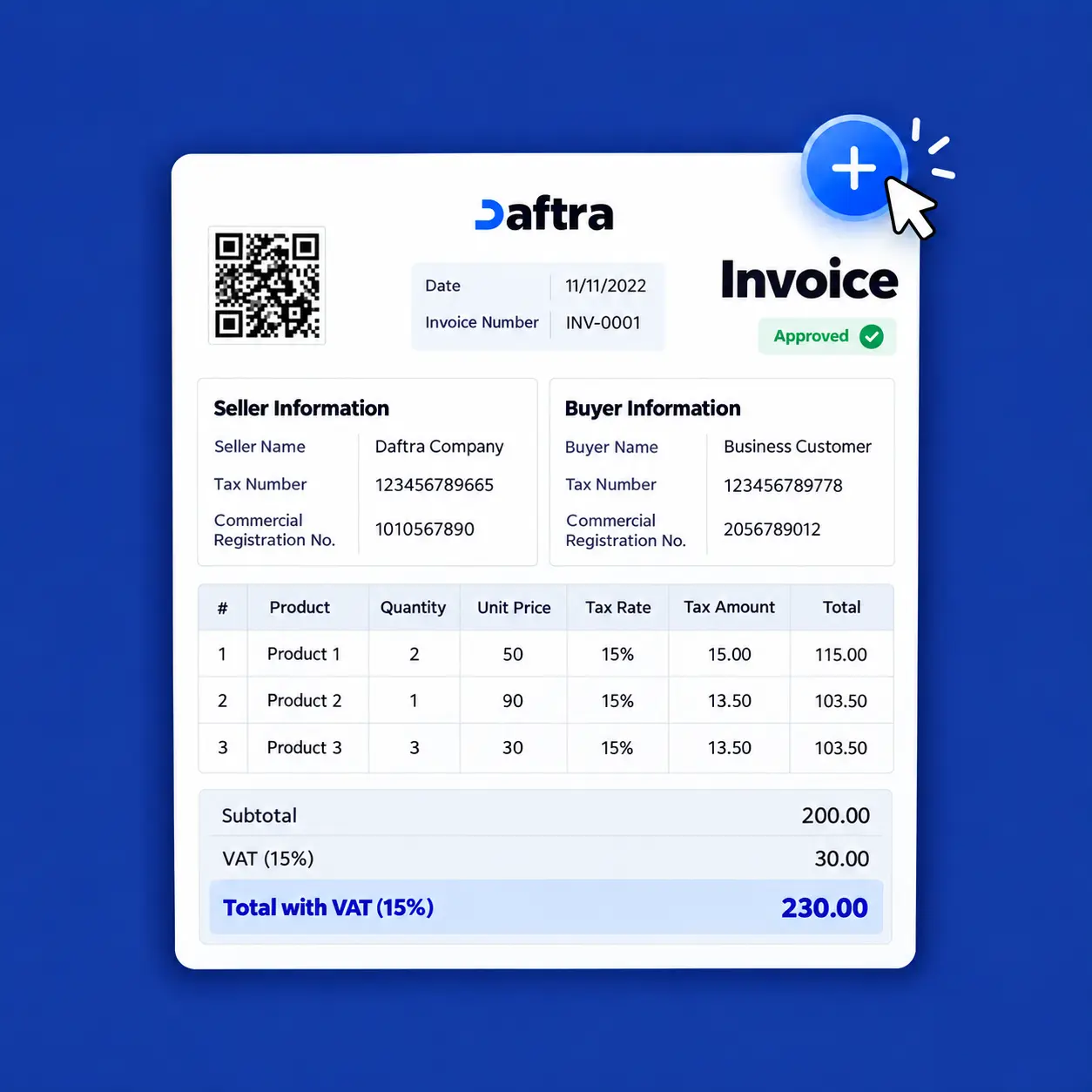
Table of contents:
- Key Summary
- What Is an Invoice?
- What Are the Different Types of Invoices?
- How to Create an Invoice in Excel
- How to Create an Invoice in Microsoft Word
- How to Create an Invoice in PDF Format
- Traditional Invoices and Phase 2 of E-Invoicing
- Free Editable Invoice Template
- How to Create an Invoice
- How to Create an E-Invoice
- How to Create a New Invoice Using Daftra
- Additional Features and Capabilities in Daftra Invoices
- Conclusion
- Frequently Asked Questions
Regardless of your business size or type, creating invoices is essential to managing day-to-day operations. Invoices play a key role in keeping your financial and accounting records organized, and they also offer marketing value you shouldn't overlook.
An invoice includes important information about your business, your customer, the products or services provided, and applicable tax details. However, its design and presentation can also reinforce your brand identity and influence how customers perceive your business.
So, how can you distinguish between different invoice types, create a professional invoice step by step, and choose the right tools to make the process easier? In this guide, we’ll walk you through everything you need to create clear, professional, well-designed invoices.
What Is an Invoice?
An invoice is a document that records the details of a sales or purchase transaction and serves as an important record of the financial obligations between the parties involved. Invoices are essential to day-to-day business operations because they help businesses document transactions, maintain accurate financial records, and establish the amounts owed by customers or payable to suppliers.
Invoices are commonly used by businesses, customers, and government authorities responsible for administering and collecting taxes.
What Are the Different Types of Invoices?
Invoice types vary according to their purpose and the nature of the transactions they cover. Some invoices are used to complete sales, while others document advance payments, recurring transactions, or international trade. The most common types include:
- Pro Forma Invoice: An estimated invoice sent by the seller to the buyer before a sale is completed. It includes product or service details, prices, quantities, and agreed-upon terms. It is generally not a final sales invoice; instead, it clarifies the proposed transaction before it takes place.
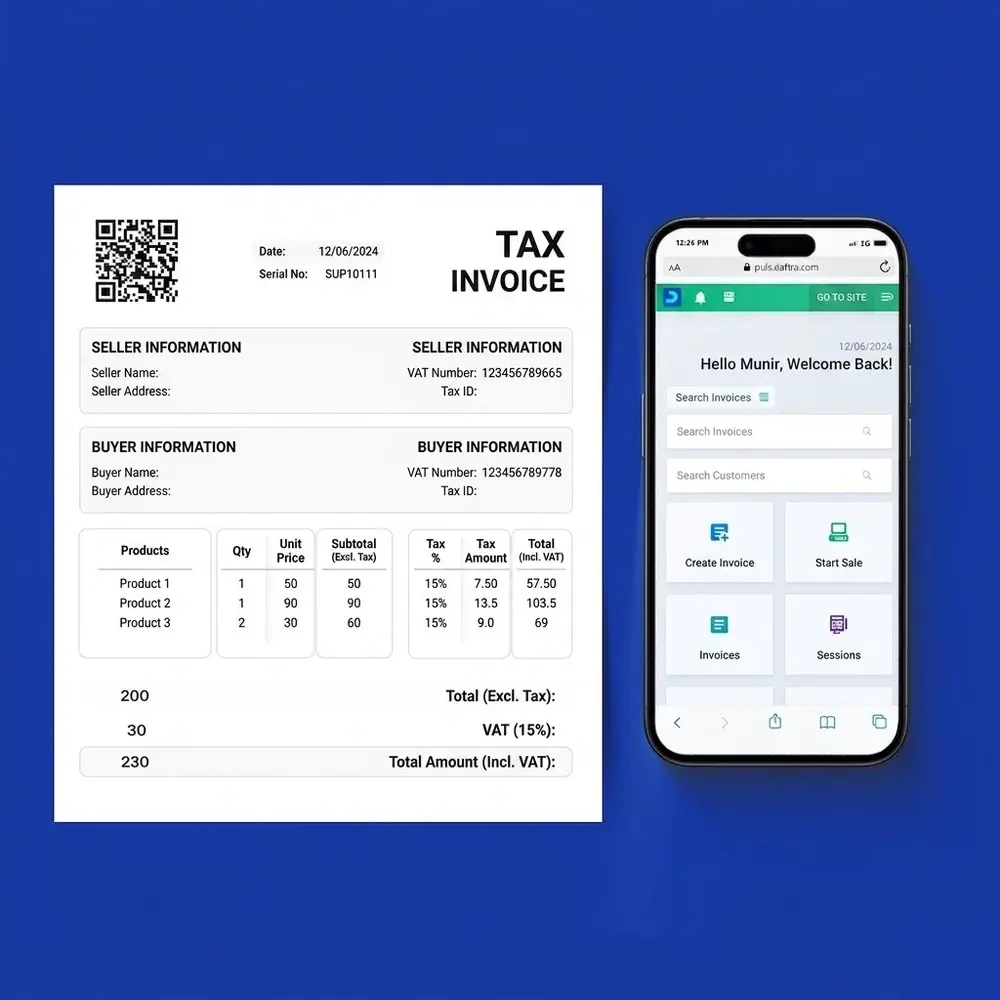
- Sales Invoice: A document issued by the seller to the buyer as proof of a sale or service. It typically includes item or service descriptions, quantities, prices, taxes, discounts, and the total amount due.
- Commercial Invoice: Used in international trade to document the sale of goods between an importer and an exporter. It includes seller and buyer details, product descriptions, values, and other information required for customs clearance and the calculation of duties and taxes.
- Recurring Invoice: An invoice issued periodically to customers for ongoing services or subscriptions, such as maintenance, hosting, or monthly and annual subscriptions. Invoicing systems that support recurring invoices can generate them automatically.
- Consolidated Invoice: An invoice that combines multiple transactions or outstanding invoices for the same customer into a single document, making it easier to track amounts due and process payments where permitted by the nature of the transaction and the applicable accounting system.
- Credit Note: A document used to reduce the value of a previously issued invoice, such as when products are returned, a discount is granted after invoicing, or an overstatement in the invoice amount needs to be corrected.
- Debit Note: A document used to increase the amount due on a previously issued invoice when additional amounts are owed by the customer, depending on the nature of the transaction.
- Interim Invoice: Used for projects or work carried out in stages. Invoices are issued for portions of the work or specific milestones rather than waiting until the entire project is complete.
- Advance Payment Invoice: Associated with an amount requested by the seller or service provider before the products are delivered or the service is performed, according to the contract terms and nature of the transaction.
- Time-Based Invoice: Used for services charged according to the time spent completing the work, such as certain consulting and freelance services. It typically includes the number of hours worked, the hourly rate, and the total amount due.
- Final Invoice: Issued when a project is completed or a transaction is finalized. It states the final amount due after accounting for previous payments and adjustments made during the project.
How to Create an Invoice in Excel
You can create an invoice in Excel from scratch instead of using a ready-made template by setting up a worksheet, adding your company and customer details, and entering information about the products or services. You can then use formulas to calculate the invoice total. Here are the basic steps:
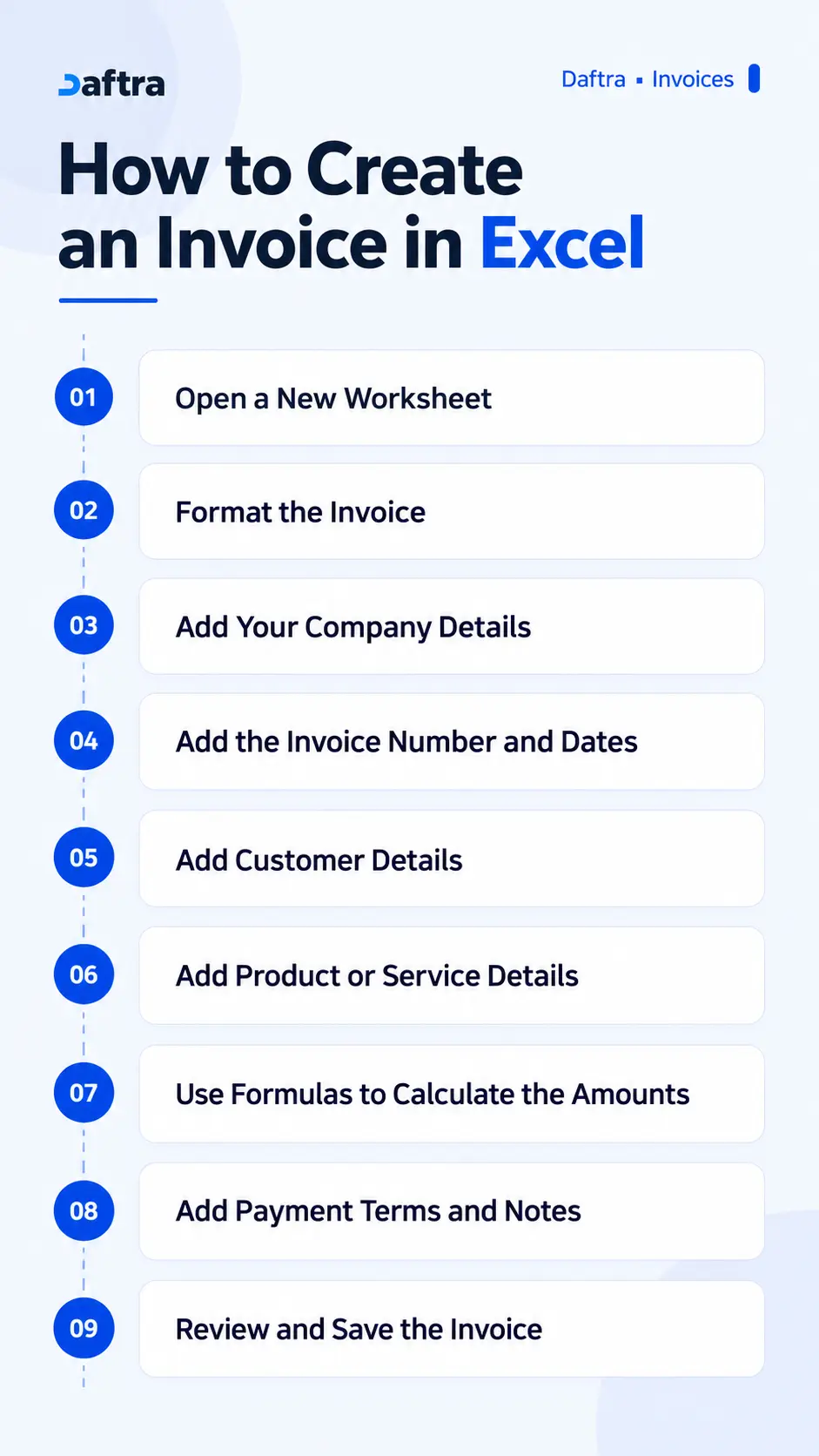
Step 1: Open a New Worksheet
Open Microsoft Excel and create a blank workbook to start preparing your invoice.
Step 2: Format the Invoice
You can hide gridlines by opening the Page Layout tab and locating Sheet Options. Under Gridlines, clear the View checkbox to give your invoice a cleaner, more organized appearance.
Step 3: Add Your Company Details
At the top of the invoice, write “Invoice” and add your company logo if you wish. Then enter your business details, such as:
- Company or business name.
- Address.
- Phone number.
- Email address.
- Tax identification number, if required.
Step 4: Add the Invoice Number and Dates
Enter the invoice number, issue date, and due date. This makes it easier to track the invoice and identify when payment is due.
Step 5: Add Customer Details
Create a separate section for the customer's information, such as the customer or company name, address, and contact details. You can also include a tax identification number or any other information required for the transaction.
Step 6: Add Product or Service Details
Create a table listing the products or services included in the invoice. The table can contain the following columns:
| Description | Quantity | Unit Price | Amount |
| Product or Service | 2 | 500 | 1,000 |
After entering the products or services, add the subtotal, any applicable discounts or taxes, and then calculate the final total.
Step 7: Use Formulas to Calculate the Amounts
Use Excel formulas to calculate invoice amounts automatically instead of entering the results manually. After creating the product or service table, add the following formulas.
Step 8: Add Payment Terms and Notes
At the bottom of the invoice, specify payment terms, such as the payment period and available payment methods. You can also include any additional notes or instructions related to the transaction.
Step 9: Review and Save the Invoice
Before sending the invoice, review the company and customer details, invoice number, quantities, prices, discounts, taxes, and final total to make sure everything is correct. Save the Excel file to keep an editable copy. If you need to send a fixed-format version to the customer, you can also export the invoice as a PDF.
How to Create an Invoice in Microsoft Word
You can create an invoice from scratch in Word using a blank document, then add your company and customer details, product or service information, and amounts due. Follow these steps.
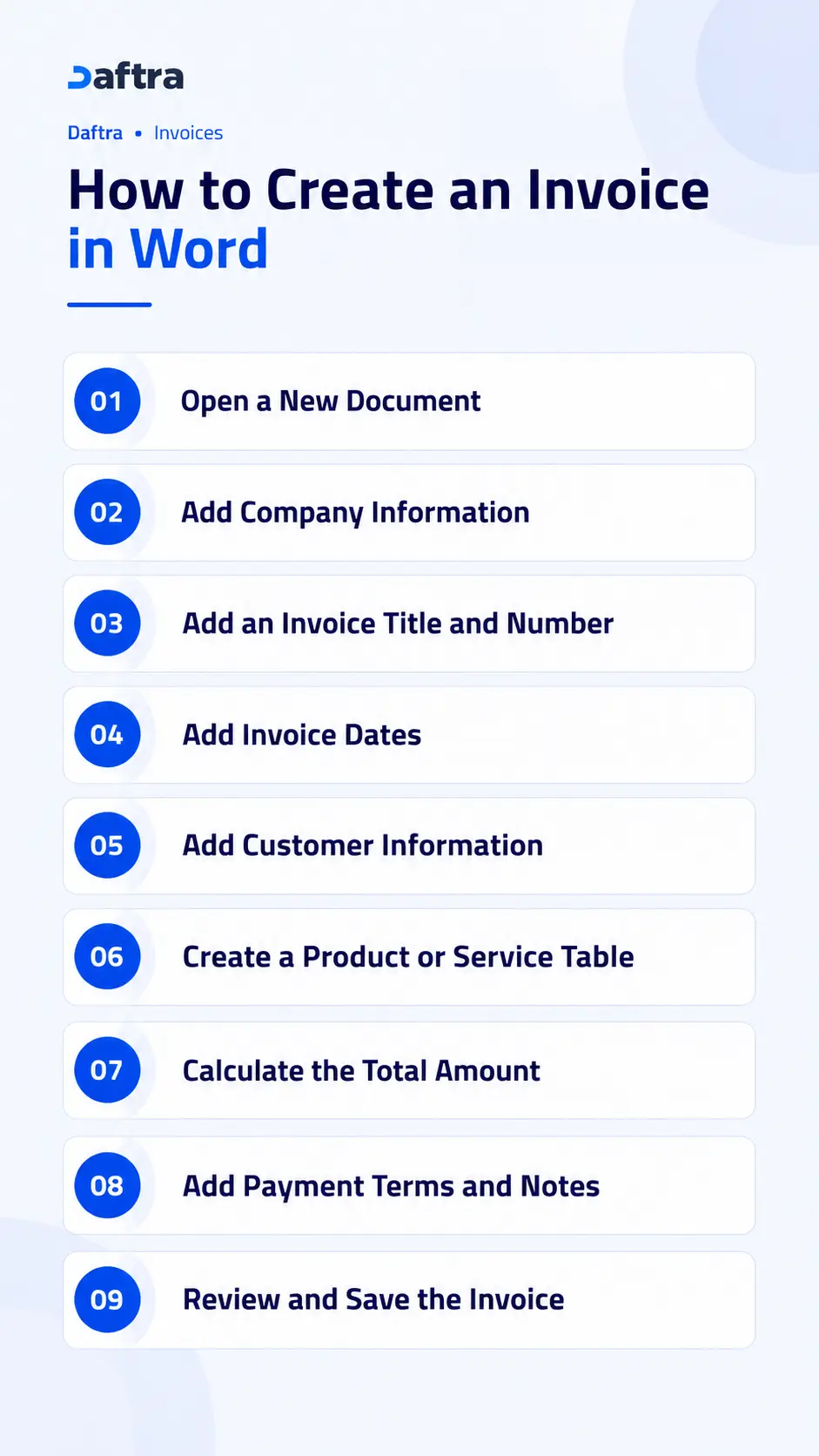
1. Open a New Document
Open Microsoft Word, then select File > New > Blank Document to open a new page and begin creating your invoice.
2. Add Your Company Details
Enter your company information at the top of the invoice, including your business name and contact details, such as your address, phone number, and email address. You can also add your company logo by selecting Insert > Pictures.
3. Add the Invoice Title and Number
Clearly write “Invoice” at the top of the document, then add a unique invoice number to help you track the invoice and retrieve it later. You can use sequential numbering, such as 001, 002, and 003.
4. Add the Invoice Dates
Enter the invoice issue date, then clearly specify the payment due date so the customer knows when payment is expected.
5. Add Customer Details
Enter the customer or company name, contact details, address, phone number, and email address. If there is a purchase order number, you can include it in the invoice details.
6. Create Product and Service Tables
Select Insert > Table to create a table displaying the invoice details. The table may include columns such as:
- Product or service description.
- Quantity.
- Unit price.
- Line total.
Enter each product or service on a separate row, then calculate the total for each line item.
7. Calculate the Total Amount
Below the product or service table, add the subtotal, any applicable discounts, fees, or taxes, and then calculate the total amount due. Review all calculations before sending the invoice to ensure they are accurate.
8. Add Payment Terms and Methods
Specify accepted payment methods, such as bank transfer or online payment, and include any terms agreed upon with the customer, such as the payment period or late fees, where applicable.
9. Review and Save the Invoice
Review the company and customer details, invoice number, dates, product or service details, amounts, taxes, and payment terms. Once you have verified all the information, select File > Save As to save the invoice as a Word document.
How to Create an Invoice in PDF Format
You can easily create an invoice in PDF format by preparing it in Word first, then saving or converting it to PDF. This allows you to use Word's formatting tools to add tables and information before creating a PDF copy ready to send or print.
1. Create the Invoice in Word
Start by opening a new Word document and creating your invoice using the steps above. Add your company and customer details, list the products or services and their prices and taxes, and include the total amount due and payment terms.
2. Review the Invoice Details
Before converting the invoice to PDF, verify all information, including the invoice number, dates, customer details, quantities, prices, taxes, and final total.
3. Save the Invoice as a PDF
Once you have finished preparing the invoice, save it as a PDF by selecting File > Save As > PDF. Choose where to save the file, enter the invoice name, and click Save.
You will then have a PDF copy of the invoice that you can send to the customer by email or messaging apps, or print when needed.
Note: If you want to keep an editable copy, save the invoice in Word format as well, then use the PDF version for sending or printing.
Traditional Invoices and Phase 2 of E-Invoicing
Traditional invoice preparation methods, such as creating an invoice in Excel or Word and then saving it as a PDF, are no longer sufficient for businesses subject to Phase 2 e-invoicing requirements in Saudi Arabia. Saving an invoice as an electronic file or sending it to a customer by email does not automatically make it a compliant electronic invoice. Phase 2 requires the use of a technical solution that complies with the requirements of the Zakat, Tax and Customs Authority (ZATCA) and can issue invoices in the required format and implement integration requirements with the Fatoora platform, depending on the invoice type.
| Comparison Criteria | Traditional Invoicing | Phase 2 E-Invoicing |
| Issuance method | Excel, Word, or paper documents | Through a compliant e-invoicing system |
| Invoice format | PDF or paper document prepared manually | Electronic format that meets technical requirements |
| Integration with the Authority | No direct integration
| Integration with ZATCA in accordance with applicable requirements |
| Data management | Separate files that may require manual entry | Structured data managed through the system |
| Technical requirements | No specialized invoicing system required | Requires a technical solution capable of meeting e-invoicing requirements |
| Invoice handling | Manual creation, saving, and sending | Issuing, managing, and sending invoices through the e-invoicing process |
| Phase 2 compliance | Not achieved simply by converting an invoice to PDF | Depends on using a compliant solution and implementing integration requirements |
At the beginning of e-invoicing implementation, before fully understanding the requirements, a Saudi business once relied on Excel to issue its invoices. Whenever a sale was completed, an employee would open an Excel file, enter the customer's details, products, quantities, prices, and tax, calculate the total, save the invoice as a PDF, email it to the customer, and keep a copy on the computer. The business assumed that the invoice had become “electronic” because it no longer used paper.
However, once the business became subject to Phase 2 e-invoicing requirements, this method was no longer sufficient. The requirement was not simply to send a digital copy of an invoice, but to issue it through a compliant technical solution capable of meeting e-invoicing requirements and integrating with the Fatoora platform in accordance with the Authority's rules.
As a result, the business needed to move from manually creating invoices in Excel and saving them as PDFs to using compliant accounting or e-invoicing software. Such a system could issue invoices in the required format, manage invoice data, and carry out the relevant integration procedures with ZATCA according to the invoice type.
This illustrates the fundamental difference between a traditional digital invoice and a compliant electronic invoice: the former may simply be an electronic copy of a conventional document, while the latter is created and processed through a system that meets the technical and regulatory requirements for e-invoicing.
Free Editable Invoice Template
You can also get started by downloading a ready-to-use blank invoice template from Daftra and customizing it for your business.
How to Create an Invoice
There are several ways to create an invoice, depending on the tools you use and how much control you want over its design:
- Use invoicing or accounting software:
The easiest option is to use invoicing or accounting software that generates invoices for you. The invoice template is already set up, so you only need to enter your transaction details and make any design adjustments if needed. This saves you from creating an invoice from scratch. - Use a ready-made invoice template:
You can also start with a ready-made invoice template in Word, PDF, or another file format. Simply customize the template by adding your business and transaction details and adjusting the layout to suit your needs. - Create an invoice from scratch:
If you want more control over the invoice design, you can create one from scratch using design tools such as Canva or Adobe InDesign, or spreadsheet software such as Microsoft Excel.
Regardless of the method you choose, your invoice should include the key information needed to clearly document the transaction. When creating your invoice, make sure to:
- Design the invoice layout and clearly organize its sections.
- Add your business logo or display your company name prominently.
- Include dedicated sections for your business details, customer information, and the products or services provided.
- Add any additional fields relevant to the transaction, such as shipping details, discounts, payment methods, and other terms.
- Save your customized invoice template so you can reuse it for each new invoice.
How to Create an E-Invoice
To create a compliant electronic invoice in Saudi Arabia, you first need to use invoicing software or accounting software that complies with the requirements of the Zakat, Tax and Customs Authority (ZATCA). After choosing the software, you can enter and verify the invoice details, then issue it electronically in accordance with the applicable requirements.
How to Create a New Invoice Using Daftra
To create a new invoice in Daftra, first make sure that the Sales App is enabled from App Management.
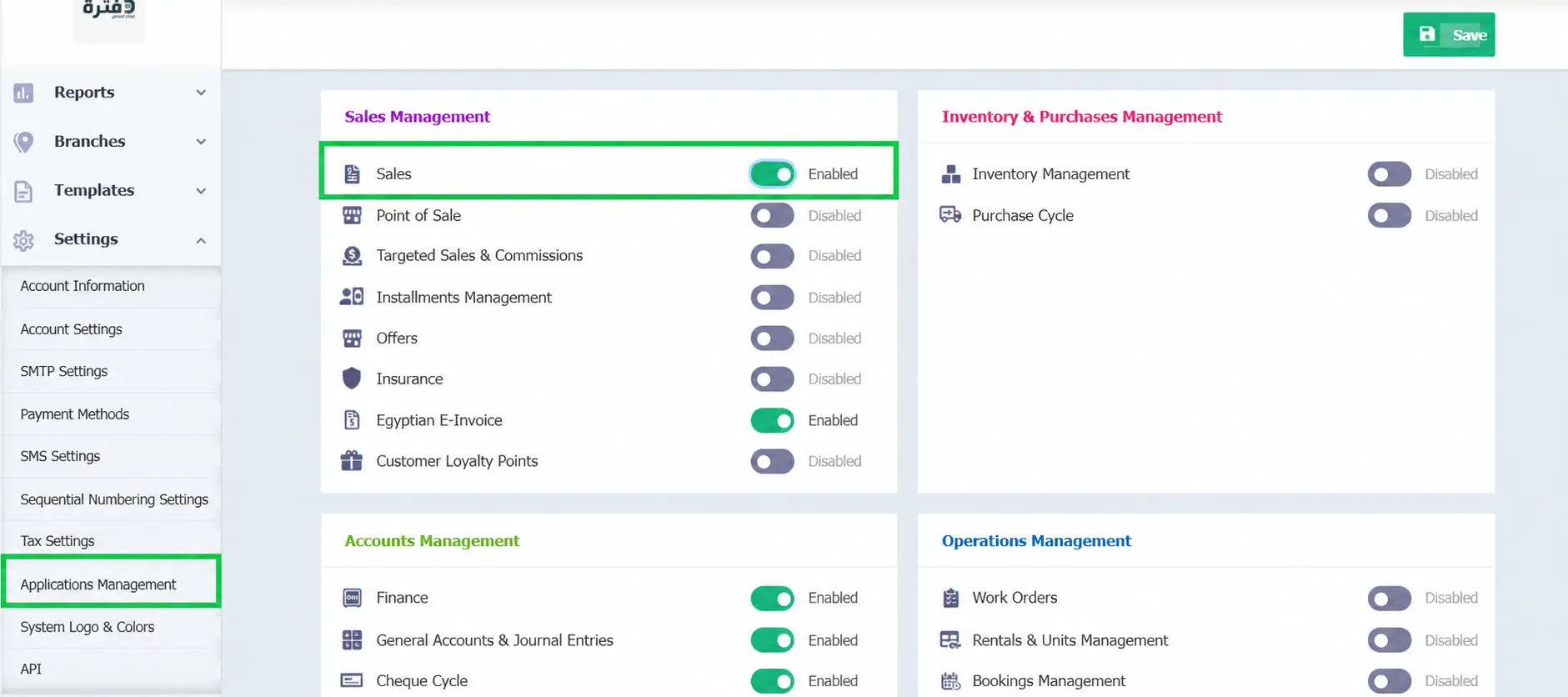
From the main menu, select Sales, then click Create Invoice. Daftra automatically creates a new invoice with a unique sequential invoice number. You can then set the invoice date, which is automatically set to the date on which the invoice is created. You can also specify the issue date, which may be the same as the invoice date, earlier, or later.
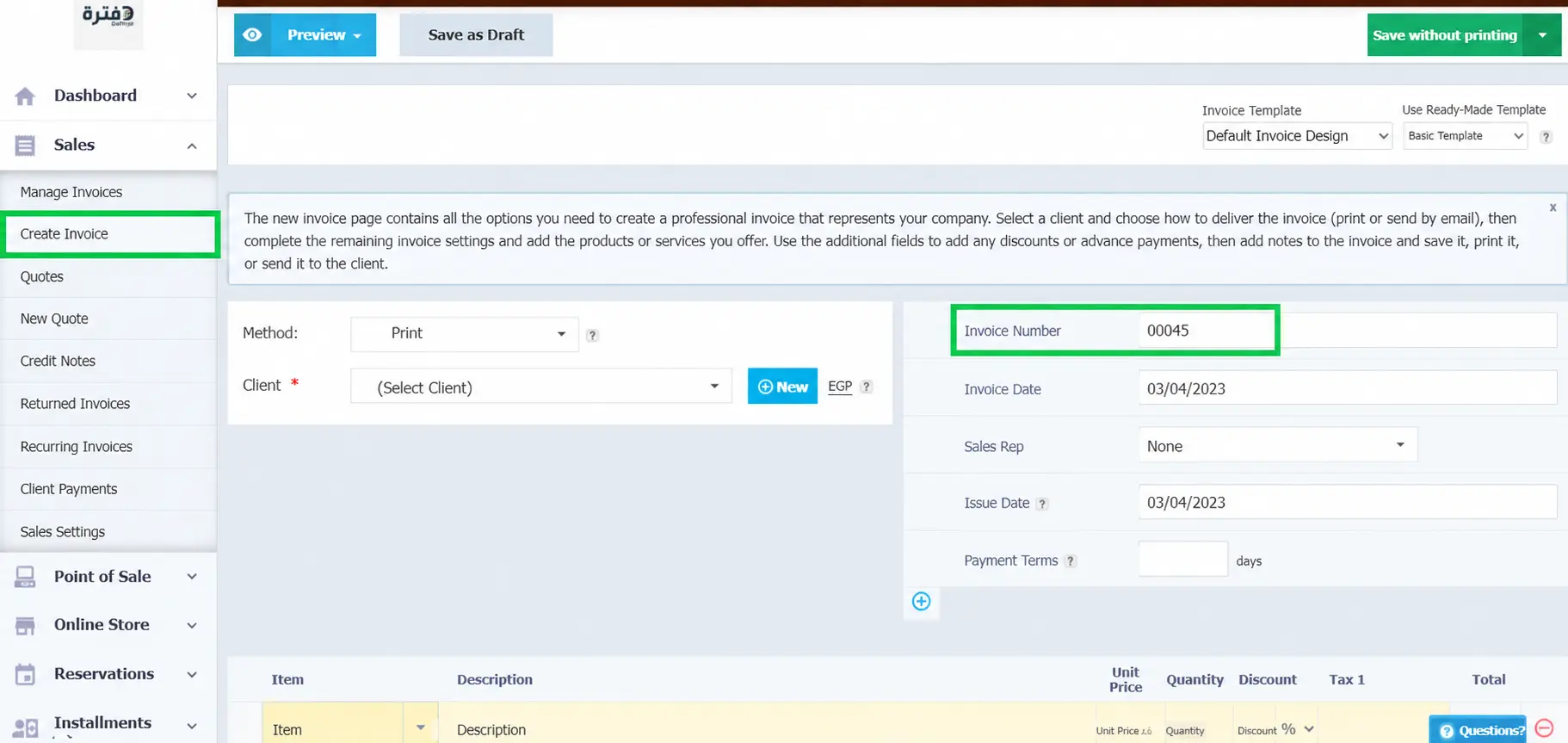
The Customer field allows you to select the customer associated with the invoice from your customer database. You can also add a new customer by clicking the button next to the field.
The Salesperson field allows you to assign the invoice to a specific salesperson. This makes it easier to track sales by employee, evaluate performance, and calculate sales commissions.
The Payment Terms field lets you specify how many days the customer has to pay the invoice.
The Price List lets you select a predefined pricing list that applies special prices to some or all products. When selected, the system automatically applies the prices from that list to the products or services on the invoice instead of their standard prices stored in your inventory.
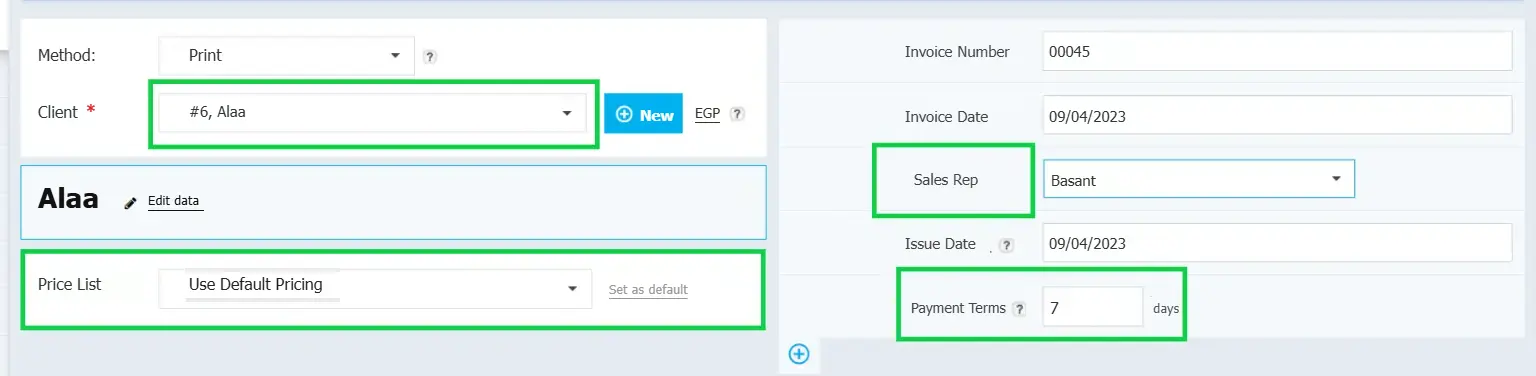
Once you have entered the basic invoice information and selected the customer, add the products or services, specify the quantity, and adjust the price if you want to change the product's default inventory price. Then, select the applicable tax for each product individually.
Additional Features and Capabilities in Daftra Invoices
Daftra offers several additional invoicing features that give you greater control over your invoices. You can use these features whenever needed or simply stick to the basic invoice details without adding further information. The most important features include:
(1) Discounts and Rounding Adjustments:

- Discounts: There are two ways to apply discounts to invoices. You can apply a discount at the line-item level (product or service) when adding products to the invoice, next to the tax field, or apply a discount to the entire invoice total, as shown in the screenshot below.
In both cases, you can choose to apply the discount as a percentage of the line-item or invoice amount, or as a fixed amount in the currency used for the invoice. You can find the steps for adding discounts in the Daftra User Guide. - Loyalty Points: If you use one of Daftra's loyalty programs, which award customers points with each purchase, these points can be redeemed as a discount when issuing an invoice for a new purchase. Simply specify the number of loyalty points the customer wants to redeem, and the system will convert them into a monetary discount based on the loyalty rules previously configured for that customer.
- Rounding Adjustment: Invoice totals often include fractional amounts, and many accountants prefer to round these amounts to the nearest appropriate whole number. This works similarly to mathematical rounding, where 5.8 is rounded to 6 and 5.4 is rounded to 5. In the Rounding Adjustment field, enter the amount you want to add to or deduct from the invoice to make the final total a whole number. Enter a positive (+) amount if the adjustment will increase the amount payable by the customer, or a negative (-) amount if you want to deduct the adjustment and absorb the difference on behalf of the customer.
- Account: Select the account from your Chart of Accounts to which you want to post the invoice, or leave the default account unchanged.
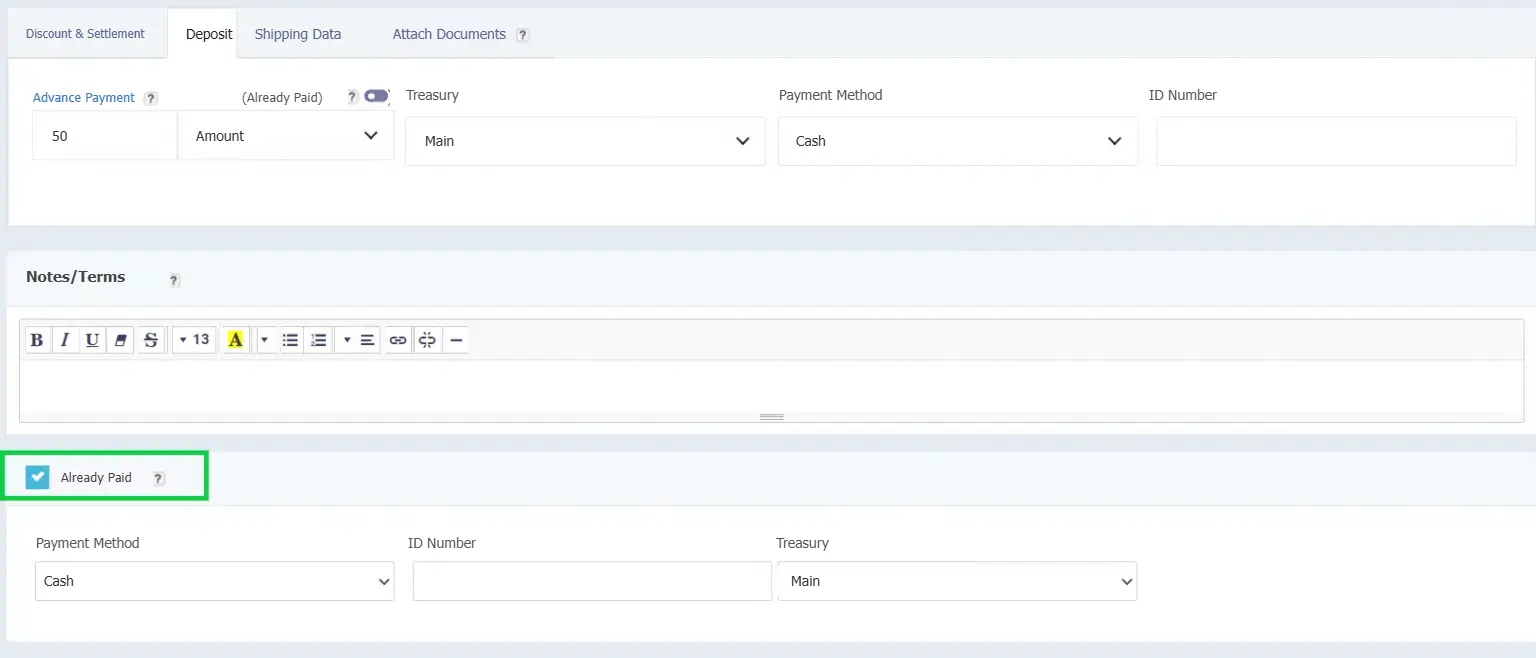
(2) Deposits:

- Advance Payment: If you have agreed with the customer that they will pay part of the total invoice amount as an advance payment, enter the amount or its percentage of the invoice total. The invoice status will then be shown as Partially Paid. However, the customer may still be scheduled to make the advance payment at a later date.
- Advance Payment Already Received: If the customer has already paid the advance amount, enable the "Already Paid" option, then select the payment method and the cash or bank account into which the payment was received.
- Identifier Number: Enter the identifier number, if applicable. This number is associated with checks used for payment.
- Already Paid: If the invoice has already been paid in full, you can enable this option instead of using the advance payment feature, which is intended for recording a partial payment.
(3) Shipping Details:

- Shipping Address: This refers to the customer's shipping address, which can either be displayed or hidden on the invoice. The available options include:
- Automatic: Displays one of the addresses saved in the customer's profile on the invoice, giving priority to the secondary address.
- Do Not Display: Hides the shipping address from the invoice.
- Display Customer Address: Displays the customer's primary address as the shipping address on the invoice.
- Display Customer Secondary Address: Displays the customer's secondary address as the shipping address on the invoice.
- Shipping Charges: Enter the shipping fees that should be collected from the customer.
- Warehouse: Select the warehouse from which the products will be shipped. You can also enable the "Select Warehouse for Each Line Item" option if you want to ship different products from different warehouses.
(4) Attachments:
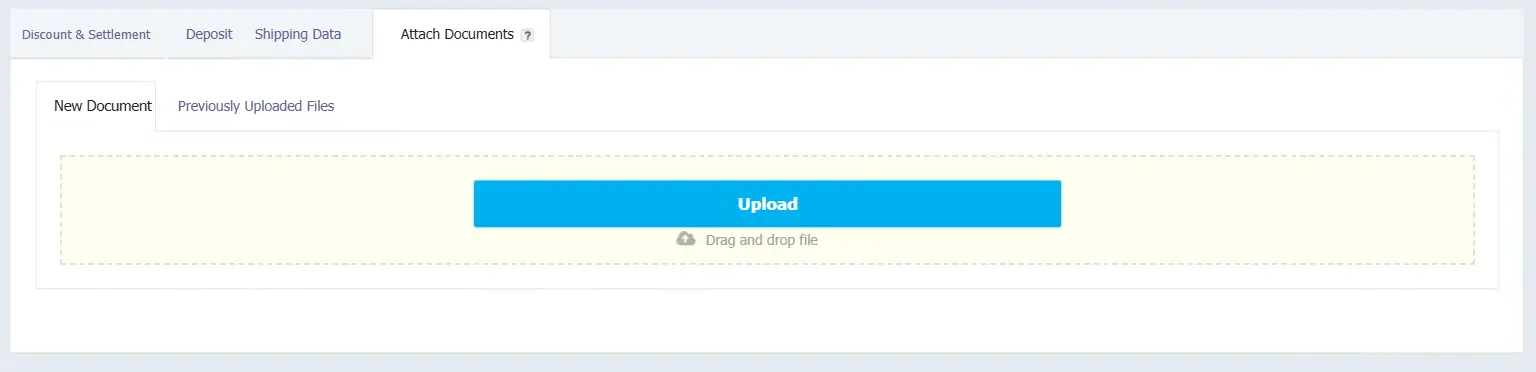
- Attach a New Document: Select the document you want to attach directly from your computer.
- Attach a Previously Uploaded Document: You can select from documents you have previously uploaded to Daftra without having to search for them again on your computer.
Conclusion
Creating an invoice involves more than recording sales amounts. It documents transactions, organizes financial information, and protects the rights of all parties. You can prepare invoices in Excel or Word and save them as PDFs when needed. However, businesses subject to Saudi Arabia's Phase 2 e-invoicing requirements must use an e-invoicing solution that complies with ZATCA requirements.
The best invoicing method therefore depends on your business and the requirements that apply to you. If you want a more organized way to issue and manage invoices, compliant invoicing software can reduce errors and simplify tracking invoices and related information.
Frequently Asked Questions
What Is the Best Invoicing Software?
The best invoicing software combines ease of invoice creation with accounting management and compliance with e-invoicing requirements. Daftra is one option worth considering because it offers a cloud-based system for managing invoices, sales, inventory, and accounting, along with tools that help organize and track financial transactions efficiently.
How Can I Create an Invoice Using Artificial Intelligence?
You can create an invoice with AI by entering product or service details, customer information, and payment terms into a suitable AI tool. The AI can organize the information, calculate totals and taxes, and automatically format the invoice. Afterward, review the details and export the invoice as a PDF to send it to the customer.











 Invoicing
 POS
POS Offers
 Installments
 Sales Commission
 KSA E-Invoice Software
 EGY E-Invoice Software
 JO E-Invoice Software
 E-Invoice Software
 Chart of Accounts
 Asset Management
 Cost Centers
 Expenses
 Cheque Cycle
 UAE VAT-Tax
 Product Management
 Purchases
 Purchase Cycle
 Suppliers
 Requisitions
 Stocktaking
 Organizational Structure
 Personnel Management
 Attendance and Leave
 Contracts
 Payroll
 Requests
 Work Orders
 Booking Management
 Rental and Unit Management
 Time Tracking
 Work Flow
 Lease Contracts
 Manufacturing Management
  Client Follow-Up
 Loyalty Points
 Points and Credits
 Memberships
 Insurance Management
 Daftra ERP Full App
 Point of Sales App
 Point of Sales for Desktop – Support Offline Mode
 AI Expenses Scanner App
 Employee Attendance, Sign & ESS App
 E-invoice Reader App
 Inventory Stocktaking App