




Table of contents:
If you are looking for a program to manage your sales, invoices, and estimates, then Daftra’s invoicing and estimates software is definitely the ideal choice. Through it, you can create and track all types of invoices: sales, tax, and shipping, while enjoying all the features and functionality available in the system.
In this article, we will learn together what an estimate is and the items it includes. We will also explain in detail how to create a new estimate in Daftra and conclude the article by clarifying the differences among a Request for Quotation (RFQ), a Request for Information (RFI), and a Request for Proposal (RFP).
What is an estimate?
An estimate is a document provided by the seller to the buyer in response to the buyer's request for a service or product. It includes details of the requested product or service and its cost, and may include additional explanatory information.
An estimate allows the potential buyer to know the cost of the product or service they will receive from the seller before committing to the purchase. Usually, an estimate is not legally binding; the obligation typically comes with the invoice.
Estimate items
Any estimate must include a set of key items that fulfill its purpose and avoid any confusion or ambiguity. These items are:
1- Estimate Issue Date
This item specifies the day and date the estimate is issued.
2- Estimate Expiry Date
Since prices may change, the estimate should include an expiry date.
3- Seller (Estimate Provider) and Buyer (Estimate Recipient) Information
- Organization name
- Address
- Tax number
4- Product/Service Description
It is preferable to include clear descriptions of the products or services provided to eliminate ambiguity about their nature and avoid disputes between the seller and the buyer.
5- Product/Service Quantity
The agreed quantity of the product or service must be included.
6- Unit Price
This item specifies the price per unit of the product or service.
7- Tax (if applicable)
If a tax applies to the product or service, it should be clarified in this item.
8- Total Cost
This item shows the final total cost after calculating the unit price, quantity, and tax.
9- Additional Notes
Any additional notes related to providing the service/product to the customer, such as shipping and storage, should be added in this item.
To manage your sales, invoices, and estimates, Daftra’s invoicing and estimates software is the ideal choice, as Daftra’s business management system gives you full capability to create and track all types of invoices through the features available in the program. You can create sales invoices, tax invoices, shipping invoices, etc., in seconds.
Through the accounting software, you can track your company’s accounts, profits, and expenses, then calculate net profit. You can also track your product movements and sales through the inventory management system.
How to Create an Estimate in Daftra
Through Daftra’s invoicing and estimates software, you can create a new estimate to send to one of your customers via email. If the customer approves it and the agreement is finalized, you can then convert this estimate into a sales invoice.
To start creating a new estimate:
- From the “Sales” menu, select “Estimates”.
- Click on the “New Estimate” button.
Explanation of the sections and components of the estimate
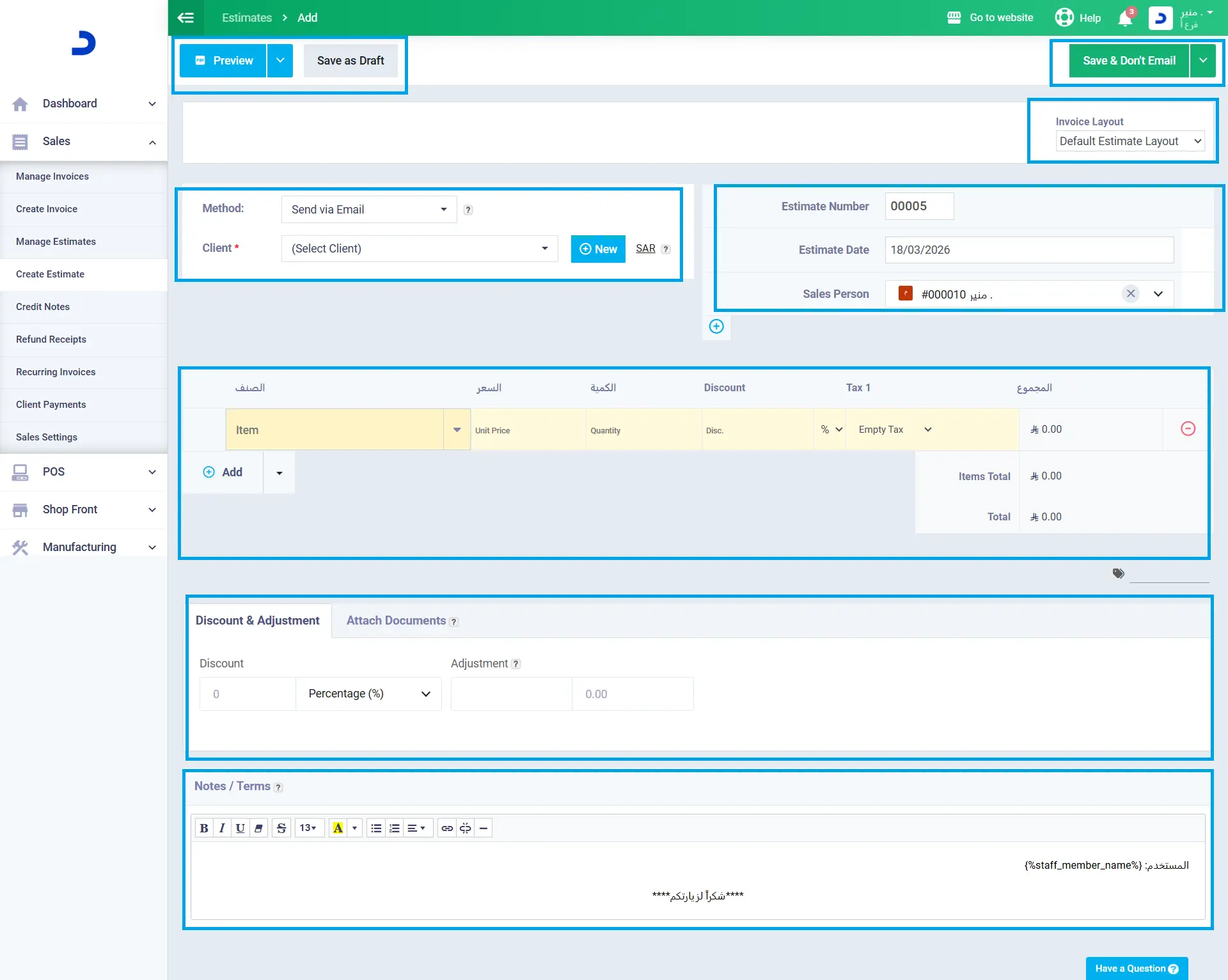
- If you have created a custom estimate template, you can select it here to apply it directly to the estimate.
- Choose the billing method, currency, and customer:
- Billing method: Select “Send via email” if you want your customer to view the estimate electronically, or choose “Print” if the customer does not have an online presence.
- Currency: Click on the currency icon to change the estimate currency.
- Customer: Select the customer from the dropdown list or create a new customer.
3.Edit the estimate, date, and salesperson.
4.Enter your product or service details:
- Item: Write the name of the products or services you provide.
- Details: Write the product details here. If you want to use only one field to describe the product (Item only), leave this field empty, and it will not appear in the estimate.
- Unit price: Enter the product price here.
- Quantity: The quantity of products sold.
- Taxes: Select taxes if you want.
- Add row: Add a new row to include more products.
5.Through the “More options” button, you can add additional options: - Add a discount.
- Enter shipping details.
6.Notes: In this field, you can add more information such as shipping and delivery details, payment method, or any details related to the products or your company.
7.After completing the estimate setup

8.If you choose the “Send via email” option in the “Method” box, you can send the estimate to your customer by clicking “Save & Send Email”.
9.To save the estimate without sending it to the customer, click on “Save as Draft” or “Save without Sending”.
10.If you want to send the estimate to the customer while editing the email, click “Send with Email Editing”. This option will save the estimate and then take you to the email page where you can edit the subject, content, and recipients of the message.
11.If you choose “Print” from the “Method” box, you can save the estimate or print it to send it to your customer.

Now you can start adding your customers and creating your invoices. You can register a free account on Daftra here: Register a Free Account. If you already have an account, you can log in here: Log in to Your Account.
If you have any other inquiries, encounter any issues while using Daftra, or just want to say hello, contact us here.












 Invoicing
 POS
POS Offers
 Installments
 Sales Commission
 KSA E-Invoice Software
 EGY E-Invoice Software
 JO E-Invoice Software
 E-Invoice Software
 Chart of Accounts
 Asset Management
 Cost Centers
 Expenses
 Cheque Cycle
 UAE VAT-Tax
 Product Management
 Purchases
 Purchase Cycle
 Suppliers
 Requisitions
 Stocktaking
 Organizational Structure
 Personnel Management
 Attendance and Leave
 Contracts
 Payroll
 Requests
 Work Orders
 Booking Management
 Rental and Unit Management
 Time Tracking
 Work Flow
 Lease Contracts
 Manufacturing Management
  Client Follow-Up
 Loyalty Points
 Points and Credits
 Memberships
 Insurance Management
 Daftra ERP Full App
 Point of Sales App
 Point of Sales for Desktop – Support Offline Mode
 AI Expenses Scanner App
 Employee Attendance, Sign & ESS App
 E-invoice Reader App
 Inventory Stocktaking App